MCP access is part of the Ultimate plan. The MCP Access menu item only appears on plans that include it.
Create a token
1
Open MCP Access
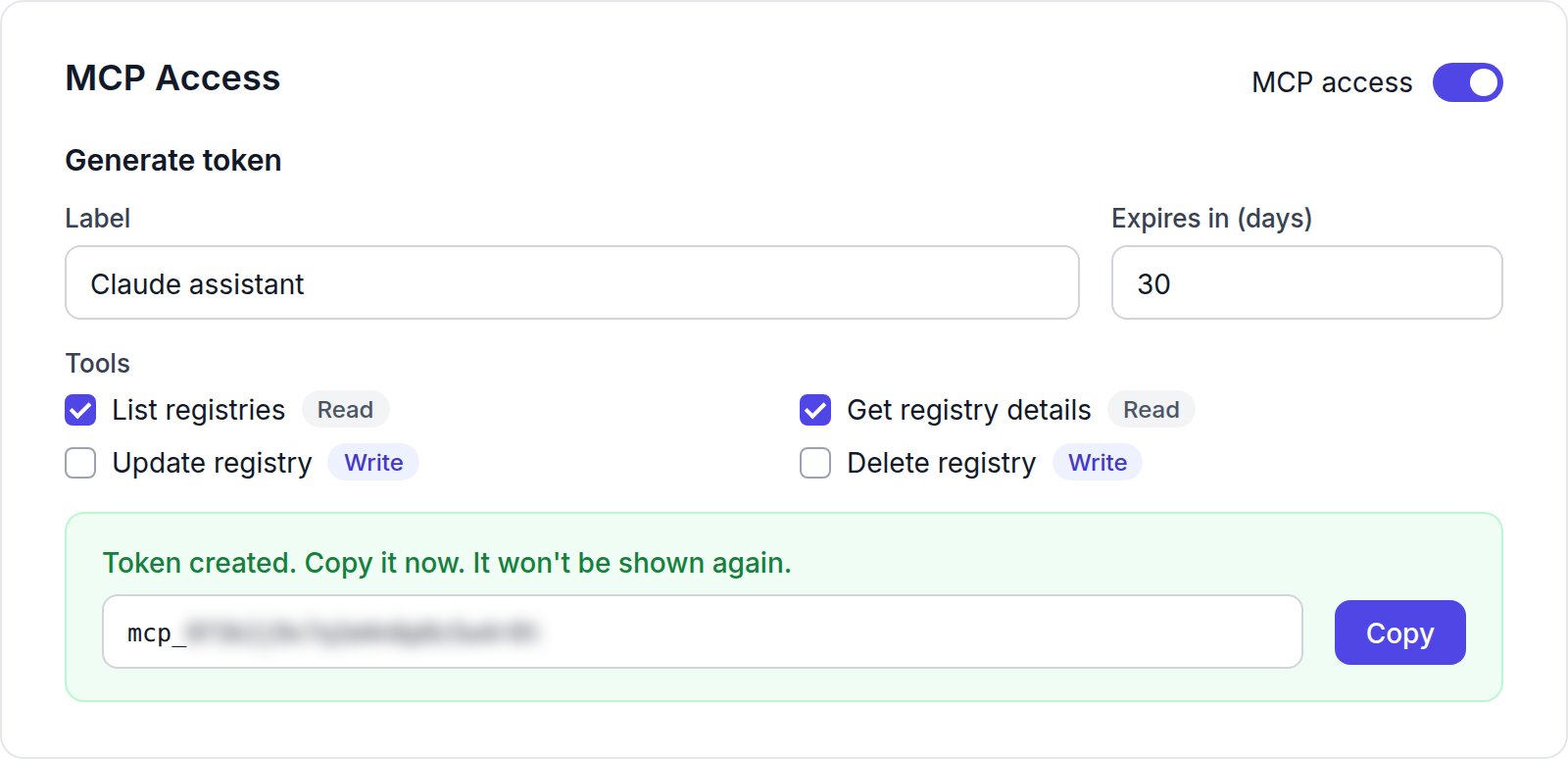
In the app, click MCP Access. Make sure the MCP access switch is on.
2
Generate a token
Under Generate token, enter a Label so you remember what the token is for.
3
Choose the tools
Tick the read and write tools the assistant may use. Give only the access it needs. Leave everything unticked to allow all tools.
4
Set an expiry (optional)
Enter Expires in (days), or leave it blank for a token that never expires.
5
Copy the token
Copy the token straight away. It won’t be shown again.