
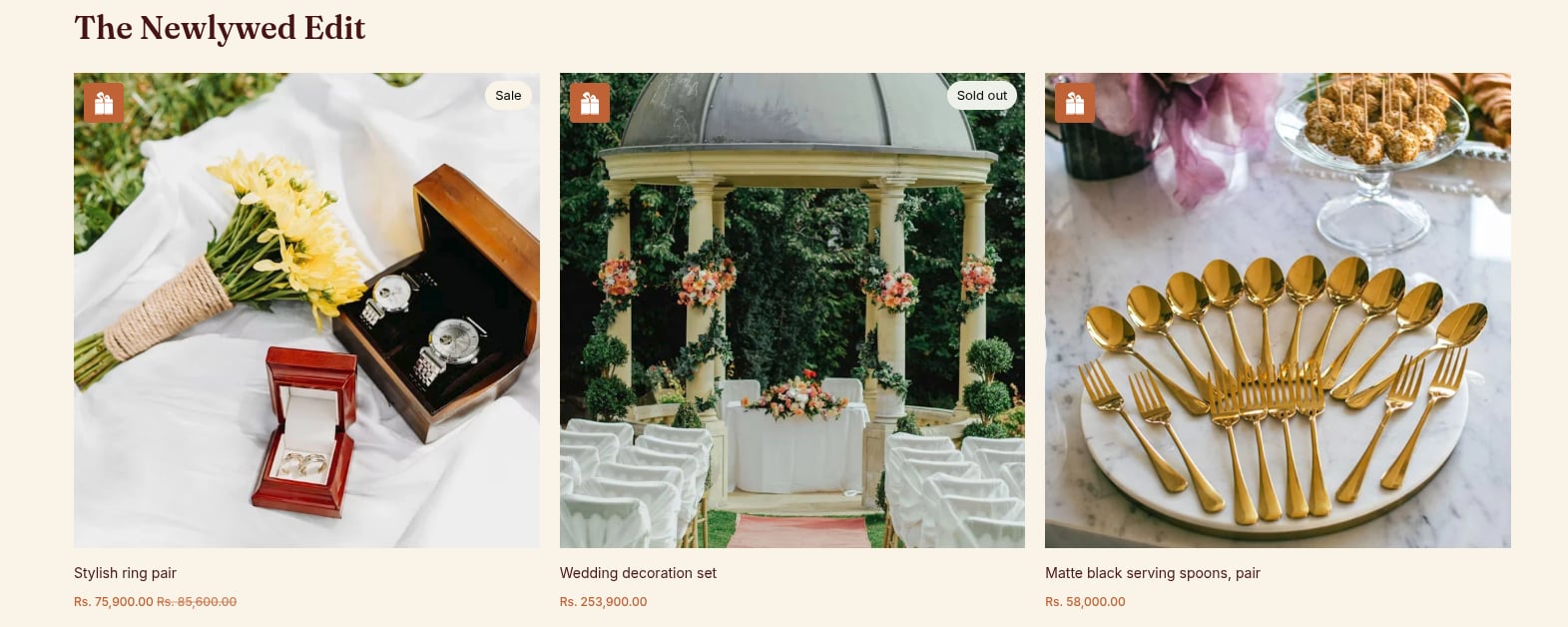
To turn the icons off, open the app embed settings in the theme editor and untick Add to Registry on product cards.
Change how the icon looks
Open Settings → Integrations & Theme → Collection Card Icon in the app.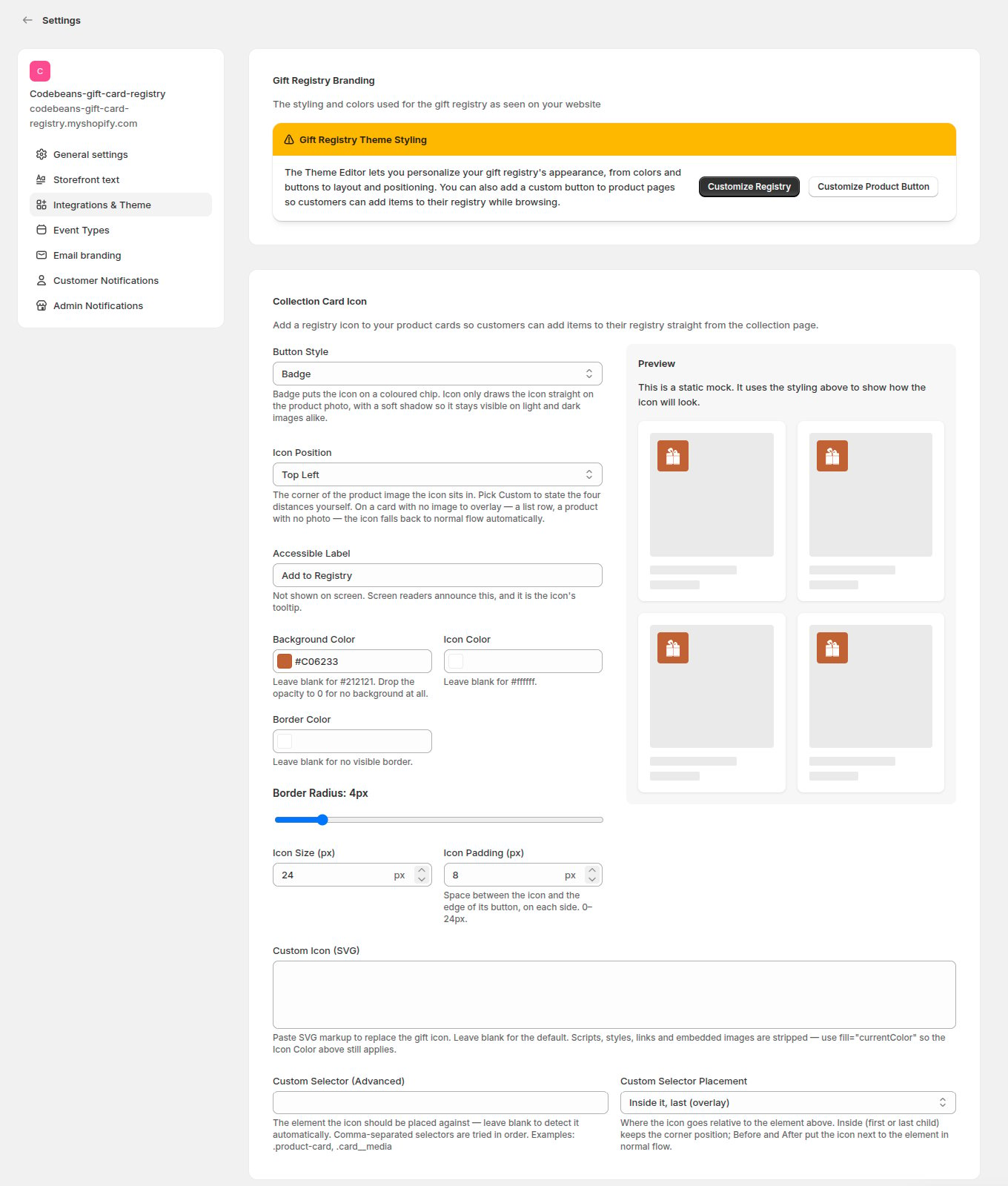
A Preview on the page shows how the icon will look.
If a card has no icon, or it sits in the wrong place
Themes build product cards in different ways. Try these in order:1. Tell the app which element is the card
1. Tell the app which element is the card
In Collection Card Icon, fill in Custom Selector (Advanced) with the CSS selector of one product card, for example
.product-card or .card__media. To find it, right-click a card on your storefront and choose Inspect. Then choose a Custom Selector Placement:- Inside it, last (overlay) or Inside it, first (overlay) keep the icon in the corner of the image.
- Just before it or Just after it place the icon next to the element.
3. Add a snippet to your card template
3. Add a snippet to your card template
Open your product card snippet (often
snippets/card-product.liquid or snippets/product-card.liquid) and paste the snippet from Add the button by hand. Inside a card, the product variable is often called card_product instead of product.Automatic detection reads the product link inside each card. If your theme opens products with JavaScript instead of a normal link, use option 2 or 3.