
Custom SMTP is part of the Ultimate plan.
Set it up
1
Open the SMTP settings
Go to Settings → Customer Notifications → SMTP Server Configuration.
2
Choose Other
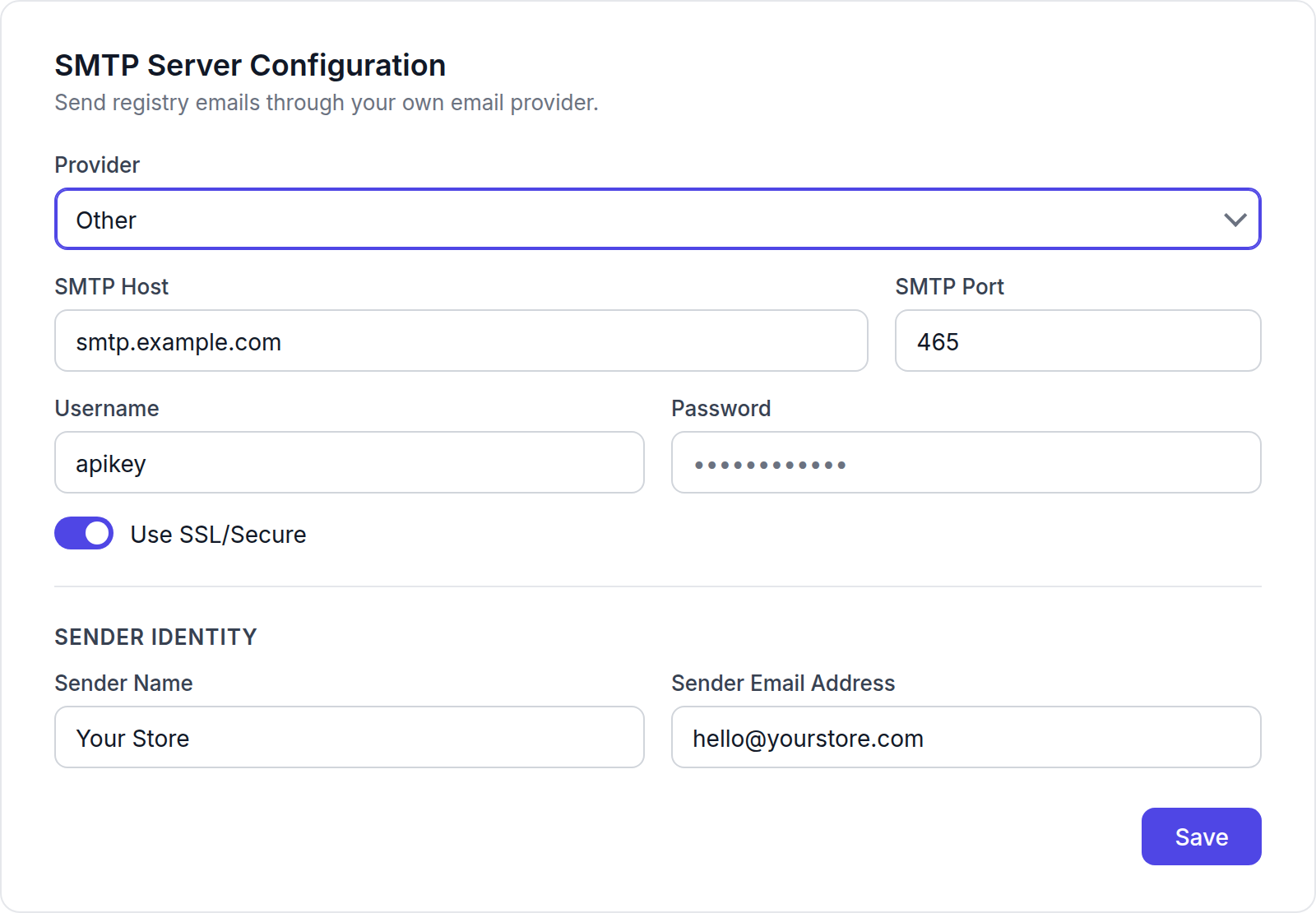
Change Provider from CB SMTP (default) to Other.
3
Enter your provider's details
Fill in SMTP Host, SMTP Port, Username and Password from your email provider. Turn on Use SSL/Secure if your provider uses SSL, usually on port 465.
4
Set the sender
Under Sender Identity, enter the Sender Name and Sender Email Address customers will see. The address must be verified with your SMTP provider.
5
Save and test
Click Save, then send a test email.